October 21, 2026
Webflow MCP: Setup Guide for AI-Powered Web Development
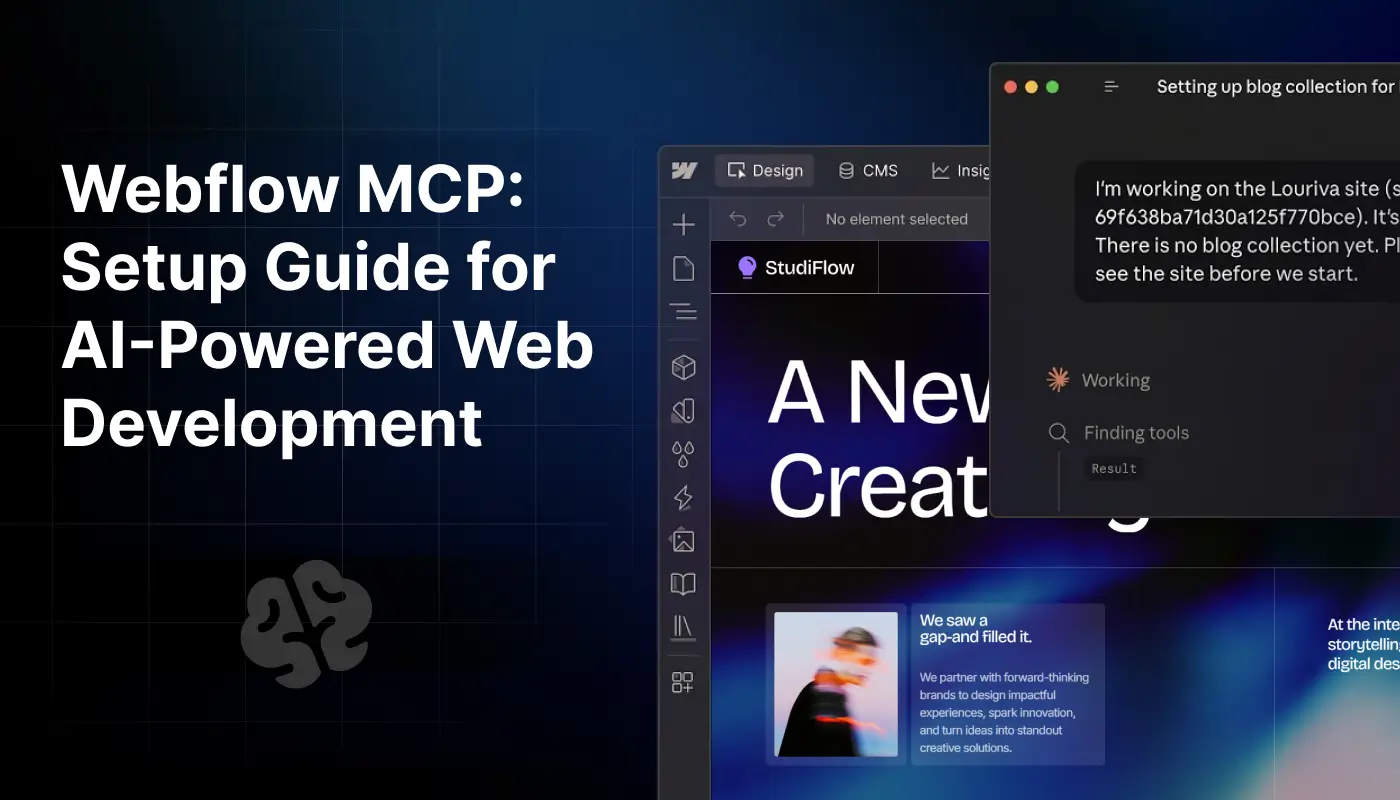
Webflow MCP is changing how designers, developers, and marketing teams interact with their websites using AI. Instead of handling every task manually, you can connect compatible AI tools to Webflow and use natural language to work with supported website elements, CMS content, components, and site data.
With Webflow MCP 2.0, these workflows extend beyond basic content management to include design system operations, page building, performance analysis, and more. Most supported operations no longer require an active Webflow Designer session.
In this guide, you'll learn what Webflow MCP is, how it works, what you can do with it, and how to set it up.
We'll also explore practical examples, performance benefits, limitations, and best practices for using AI in your Webflow workflow.
Table of Contents
- What Is Webflow MCP?
- How Does Webflow MCP Work?
- Key Features of Webflow MCP 2.0
- What Do You Need Before Setting Up Webflow MCP?
- How to Set Up Webflow MCP Step by Step
- Practical Webflow MCP Use Cases and Prompts
- Performance Benefits, Limitations, and Security
- Troubleshooting and Best Practices
- Conclusion
- Frequently Asked Questions
1. What Is Webflow MCP?
Webflow MCP is an integration that connects AI tools and agents to Webflow projects through the Model Context Protocol (MCP). MCP is an open protocol that standardizes how AI applications communicate with external tools and data sources.
Webflow's MCP server exposes supported Webflow capabilities to compatible AI clients. This allows users to interact with their websites through natural language instead of manually performing every operation or writing individual API requests.
For example, you could ask an AI agent to retrieve CMS collection information, update content, create components, inspect available site analytics, or help build a page using your existing design system.
The exact actions available depend on the client's capabilities, your Webflow permissions, and the operation you're requesting.
Unlike a basic chatbot that only provides instructions, a connected AI agent can use authorized tools to perform supported operations on your actual Webflow project.
You can explore the official Webflow MCP documentation to understand its capabilities and technical requirements.
2. How Does Webflow MCP Work?
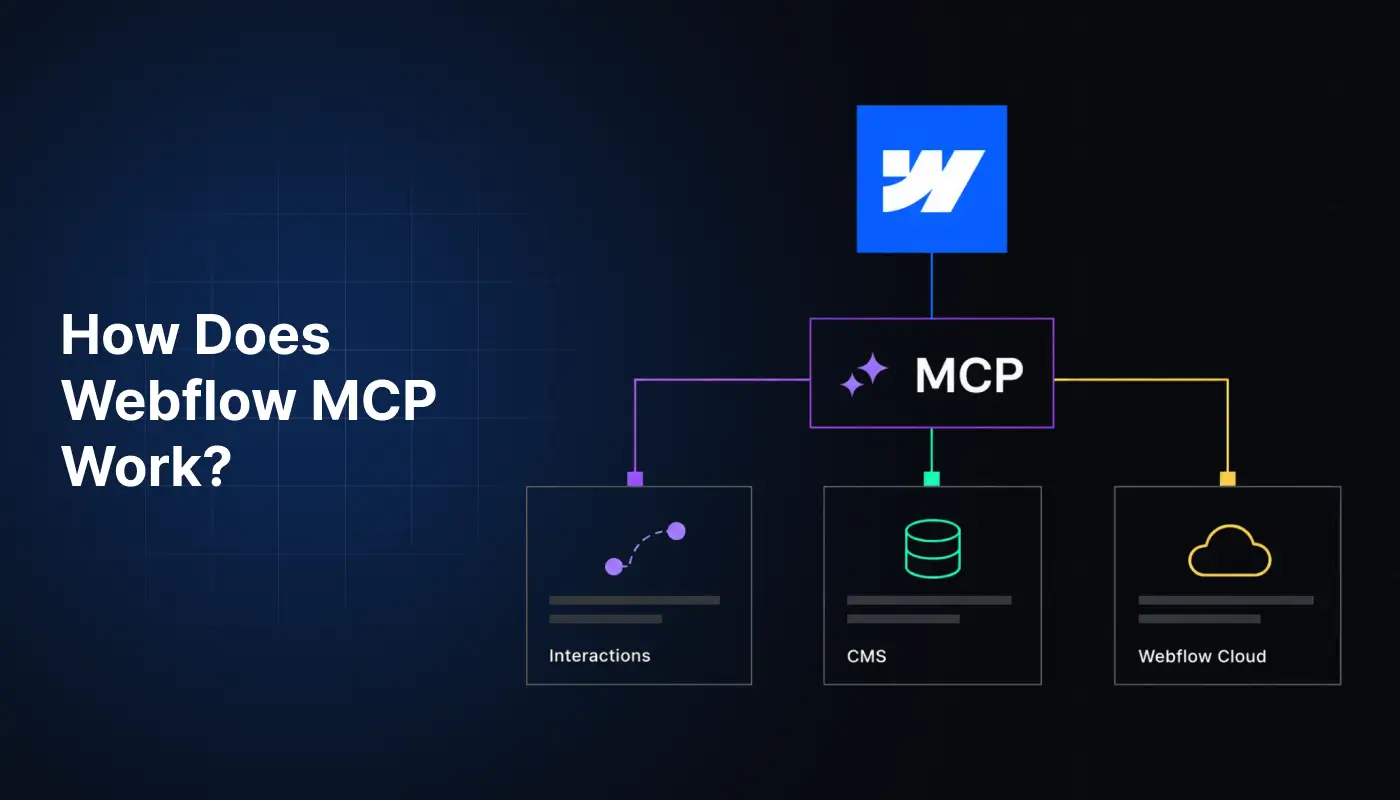
Webflow MCP acts as a communication layer between an AI client and Webflow's APIs.
Here's how the process works:
- You submit a prompt: Ask your connected AI tool to perform a specific Webflow task.
- The AI identifies the action: The agent determines which available MCP tools can help complete the request.
- The MCP server communicates with Webflow: It uses the appropriate API operations and authorized access.
- Webflow returns the result: The AI receives structured information or the outcome of the requested operation.
- You review the result: Check the changes, verify accuracy, and approve any publishing actions when necessary.
For example, you could ask an AI agent to list the CMS collections on your website. The agent can use the relevant tool to retrieve the available information and summarize it in your conversation.
Webflow's MCP server uses OAuth authorization, so you don't need to manually manage API requests for every supported task.
Learn more about the Webflow MCP architecture.
3. Features of Webflow MCP 2.0
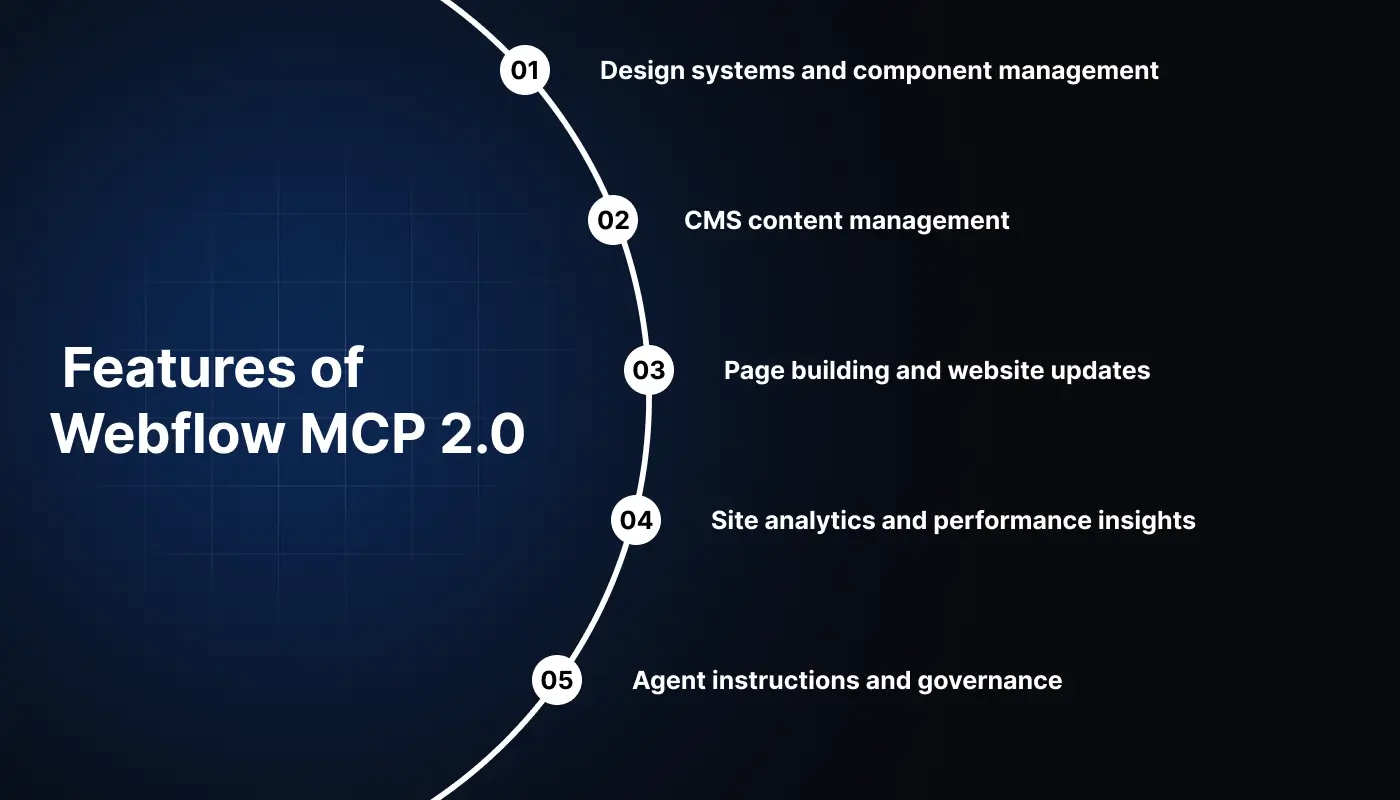
Webflow MCP 2.0 expands the ways AI agents can work with websites. Here are some of its important capabilities.
Design systems and component management
AI agents can work with supported Webflow elements, styles, variables, and components. This can help teams create reusable components and maintain consistency across pages.
CMS content management
MCP supports operations involving CMS collections and content, subject to the available tools and permissions. This can help content teams manage structured website information through AI-assisted workflows.
Page building and website updates
Agents can perform supported page-building operations, update elements, and work with page settings. These capabilities can reduce the need to handle every supported change manually.
Site analytics and performance insights
For sites with Webflow Analyze, compatible agents can retrieve supported metrics and ask questions about traffic trends, popular pages, engagement events, and traffic sources.
This makes it easier to explore website data through natural language. However, analytics access does not mean MCP automatically improves website speed or search rankings.
Agent instructions and governance
Webflow supports instructions that provide AI agents with information about a site's design system, content guidelines, and working conventions.
MCP 2.0 also supports permissions and activity tracking. These controls help teams manage access and review actions performed through AI workflows.
For the latest details, see Webflow's MCP 2.0 announcement.
4. What Do You Need Before Setting Up Webflow MCP?
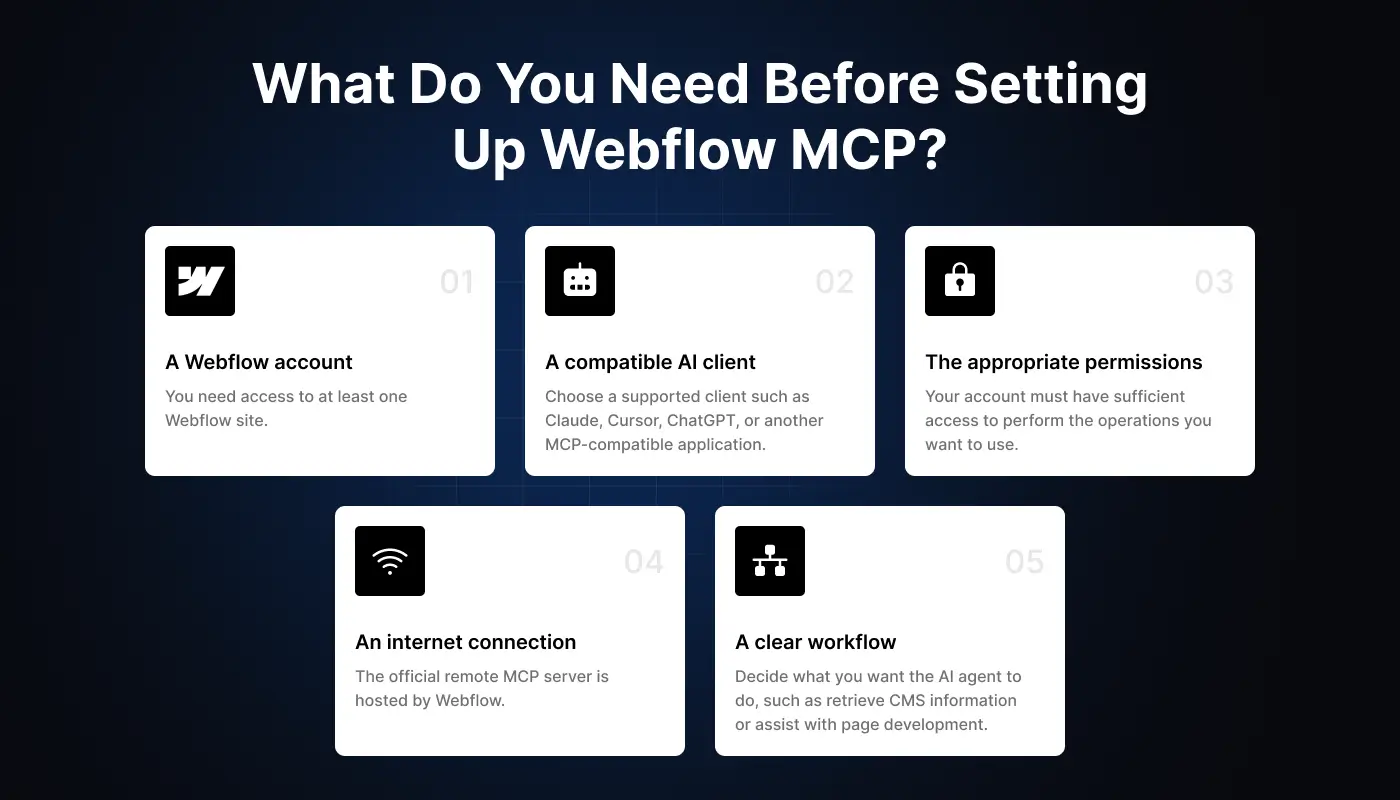
Before connecting Webflow MCP, make sure you have the following:
- A Webflow account: You need access to at least one Webflow site.
- A compatible AI client: Choose a supported client such as Claude, Cursor, ChatGPT, or another MCP-compatible application.
- The appropriate permissions: Your account must have sufficient access to perform the operations you want to use.
- An internet connection: The official remote MCP server is hosted by Webflow.
- A clear workflow: Decide what you want the AI agent to do, such as retrieve CMS information or assist with page development.
You don't necessarily need advanced coding skills to begin. However, understanding basic website structure, CMS concepts, and permissions will help you use the integration more effectively.
5. How to Set Up Webflow MCP Step by Step
Webflow provides client-specific installation options and manual configuration. The exact process depends on the AI tool you choose.
Step 1: Choose your AI client.
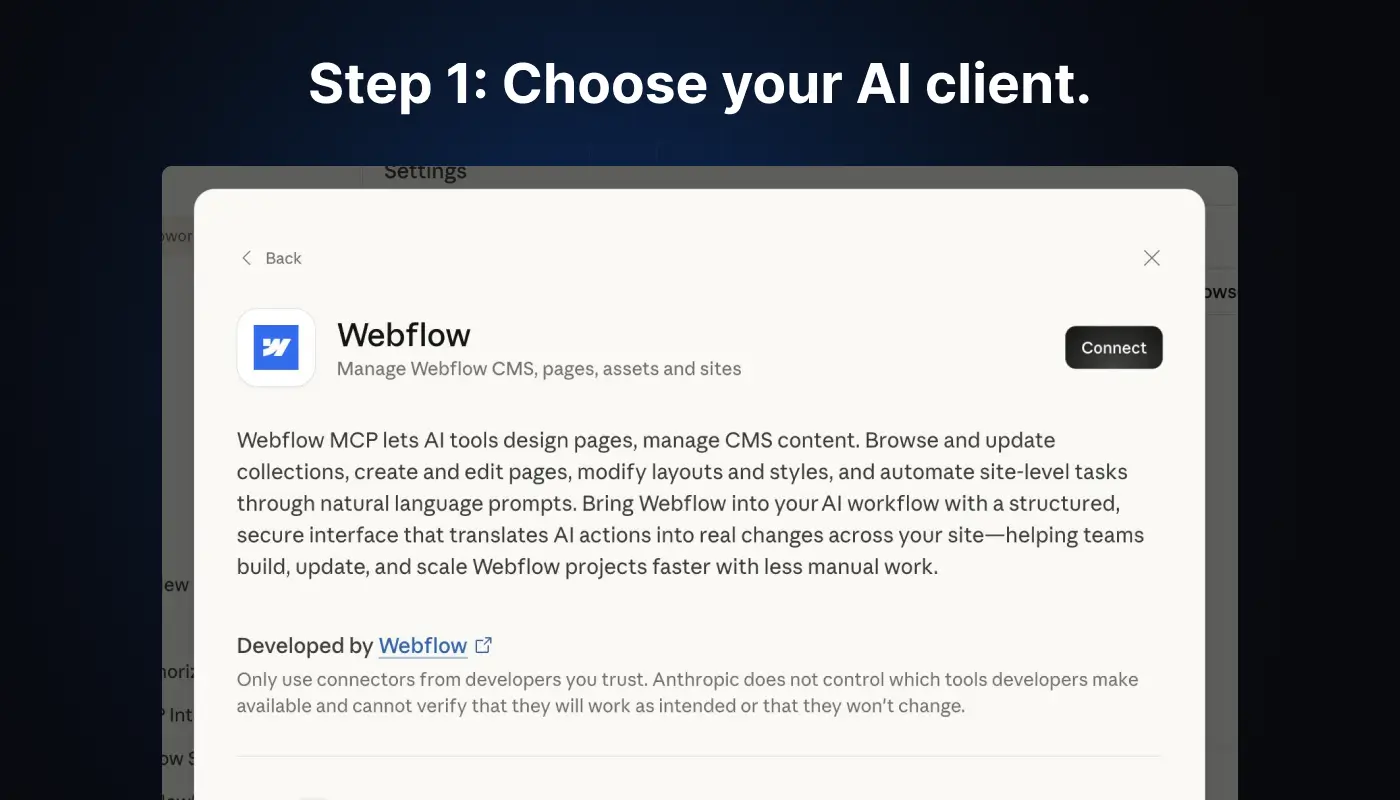
First, select an AI application that supports Webflow MCP.
Webflow provides setup instructions for several popular clients, including Claude Desktop, Claude Code, Cursor, Postman, and Windsurf. Other compatible clients may also support manual configuration.
Choose a client based on your existing workflow. For example, developers who work inside an AI coding environment may prefer an editor-based integration, while users who primarily work through conversations may prefer a chat-based connector.
Check the official Webflow MCP setup guide for the current list of supported options.
Step 2: Connect to the Webflow MCP server
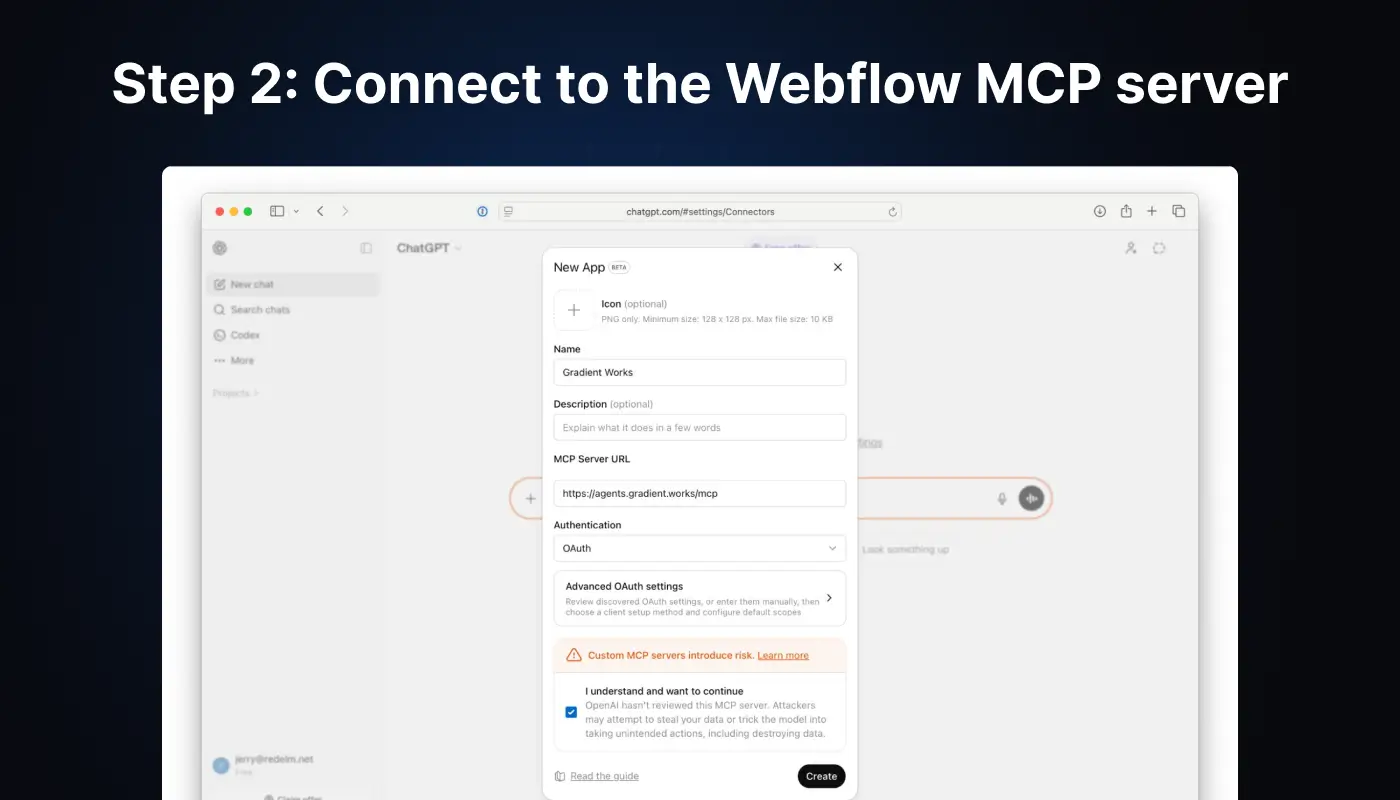
Open your chosen AI client and follow its Webflow integration instructions.
Depending on the client, you may install an official connector or plugin, or add the remote MCP server manually.
The official server endpoint is
https://mcp.webflow.com/mcp
If your client requires manual configuration, follow its current MCP configuration format and use the server endpoint above. Do not assume every client uses the same configuration fields or installation commands.
Step 3: Authorize your Webflow account
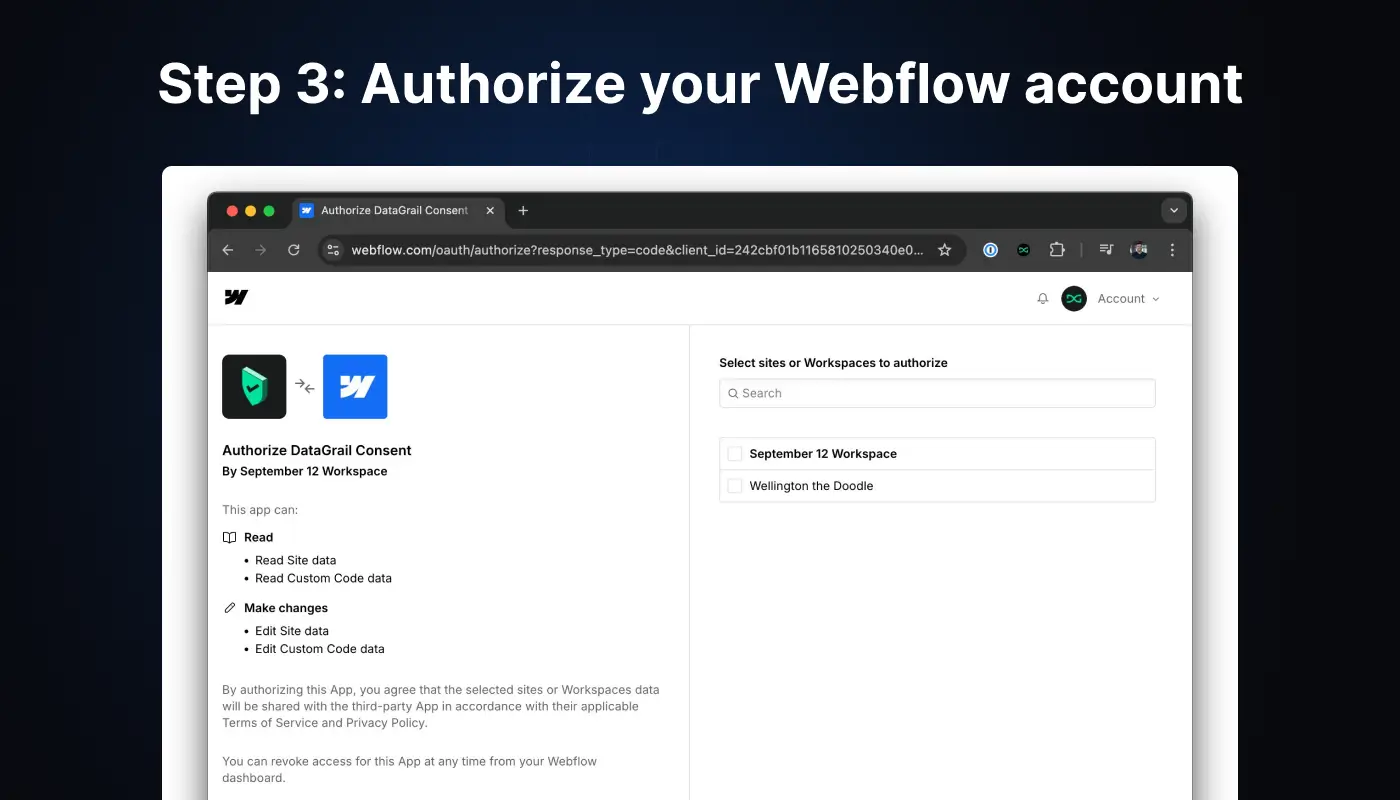
Once the connection is configured, complete the authorization process.
Sign in to Webflow when prompted and grant the permissions required for your intended workflow. Review the access request before approving it.
The authorization process connects the AI client to your Webflow account and determines which resources and operations it can access.
Keep in mind that Webflow's MCP authorization is scoped to a workspace. If you need to work with a different workspace, you may need to authorize that workspace separately.
Step 4: Verify the connection
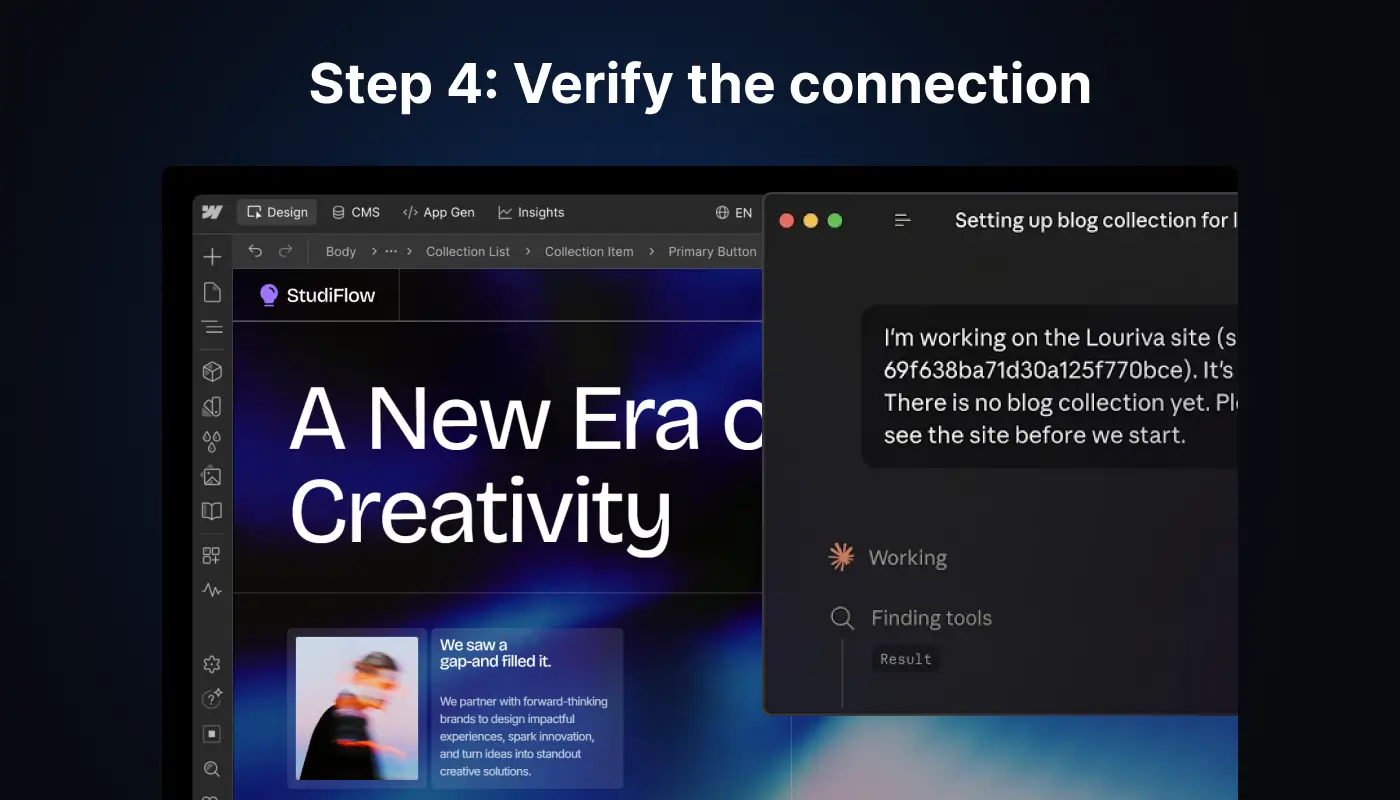
After authorization, ask your AI client to perform a simple, low-risk task.
For example, use this prompt:
List the Webflow sites and CMS collections available to me. Do not make any changes.
Check whether the agent returns the expected information. If the tool cannot access the requested resources, review the connection status, permissions, and client configuration.
Start with read-only tasks before attempting changes to live website content.
Step 5: Run your first Webflow task
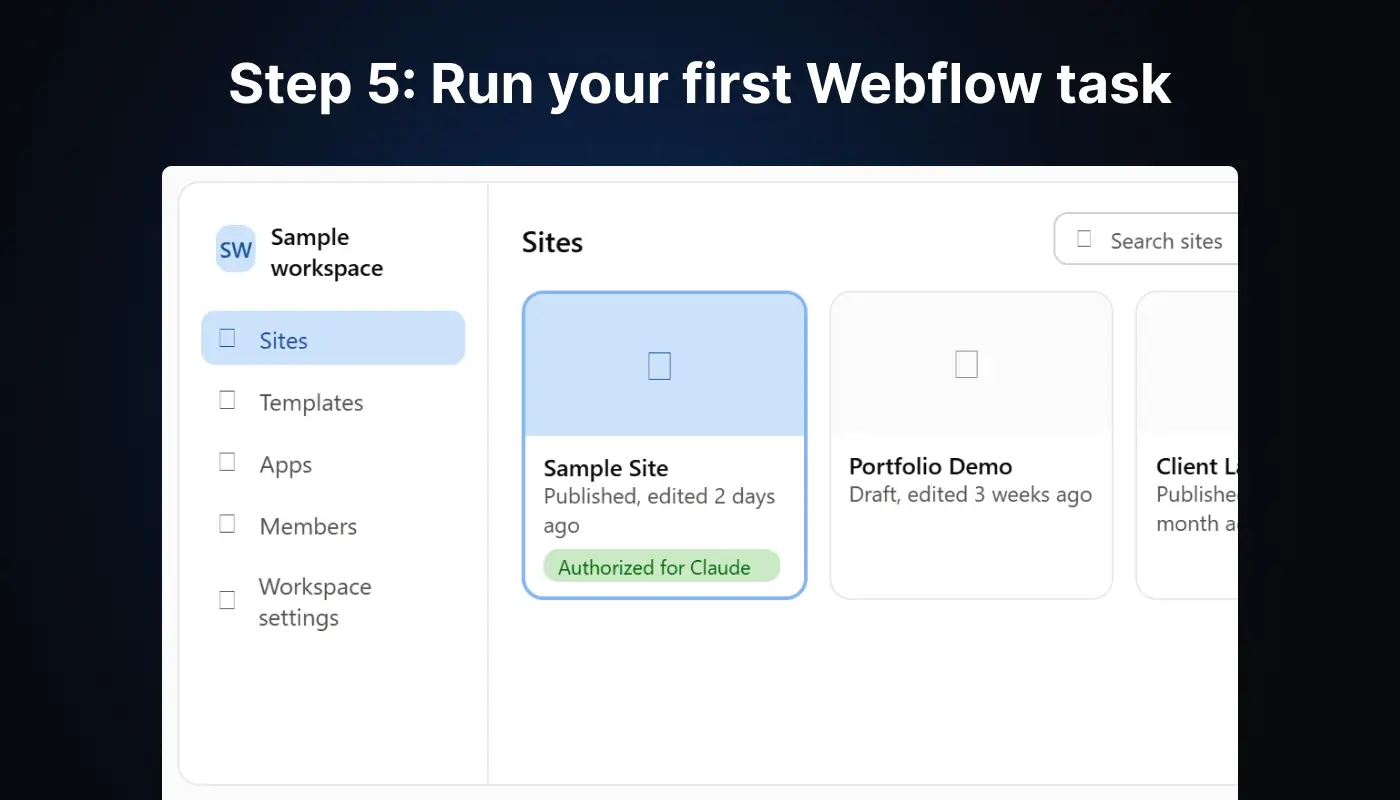
Once the connection works, try a practical request:
Review the CMS collections available on my Webflow site. Explain their purpose and suggest improvements to their content structure. Do not change anything.
Review the response and confirm that the agent is working with the correct website.
When you're ready to make changes, use clear instructions, specify the intended result, and review the output before publishing.
Important: Most MCP 2.0 operations no longer require the Webflow Bridge App. However, certain tasks involving visual snapshots, the current designer selection, or live canvas context still require the designer and bridge app. Consult the current documentation if your workflow depends on these capabilities.
6. Practical Webflow MCP Use Cases and Prompts
Once connected, Webflow MCP can support different website workflows. These examples illustrate how to write useful prompts; the actual result depends on the available tools and permissions.
1. Review CMS content.
Prompt:
List the CMS collections on my site and identify fields that may need clearer naming or more consistent content.
This can help you understand your content structure before making changes.
2. Build a reusable component
Prompt:
Help me create a reusable pricing component that follows my existing Webflow styles and design conventions. Explain the proposed structure before making changes.
This encourages the agent to use your design system instead of inventing a completely separate approach.
3. Review SEO settings
Prompt:
Review the available SEO settings for my website pages. Identify missing or potentially inconsistent metadata and provide a list of recommendations. Do not publish changes.
Use the appropriate available tools to inspect supported page settings and schema information. Validate findings with your normal SEO auditing tools before implementing recommendations.
4. Explore website analytics
Prompt:
Compare the top-performing pages on my site over the last 30 days and summarize their traffic sources and engagement trends, where the available analytics data supports this.
This can help marketing teams investigate trends without manually navigating every analytics report.
5. Review website assets.
Prompt:
Review the available assets on my Webflow site and identify potential opportunities to organize files or optimize image formats.
Check any suggested changes before applying them, particularly when they could affect assets used on live pages.
7. Performance Benefits, Limitations, and Security
Webflow MCP can make supported tasks more efficient by reducing repetitive manual work and allowing users to interact with website resources through natural language.
For example, developers can use AI assistance to explore site structures, manage supported CMS operations, and work with reusable components. Marketing teams can investigate analytics data and review content workflows.
However, MCP does not automatically make a website faster, improve Core Web Vitals, or guarantee higher Google rankings. Those outcomes depend on implementation quality, content, technical SEO, hosting behavior, and other factors.
Security also matters. MCP agents operate within authorized permissions, but their actions still need appropriate oversight.
Follow these practices:
- Grant only the access required for the task.
- Review proposed changes before publishing.
- Test potentially disruptive operations in a suitable development environment or branch.
- Protect credentials and confidential information.
- Review activity logs and verify important changes.
- Validate SEO metadata, page layouts, links, and CMS updates after implementation.
Teams should also understand the limitations of their chosen client and the Webflow MCP tools it supports.
8. Troubleshooting and Best Practices
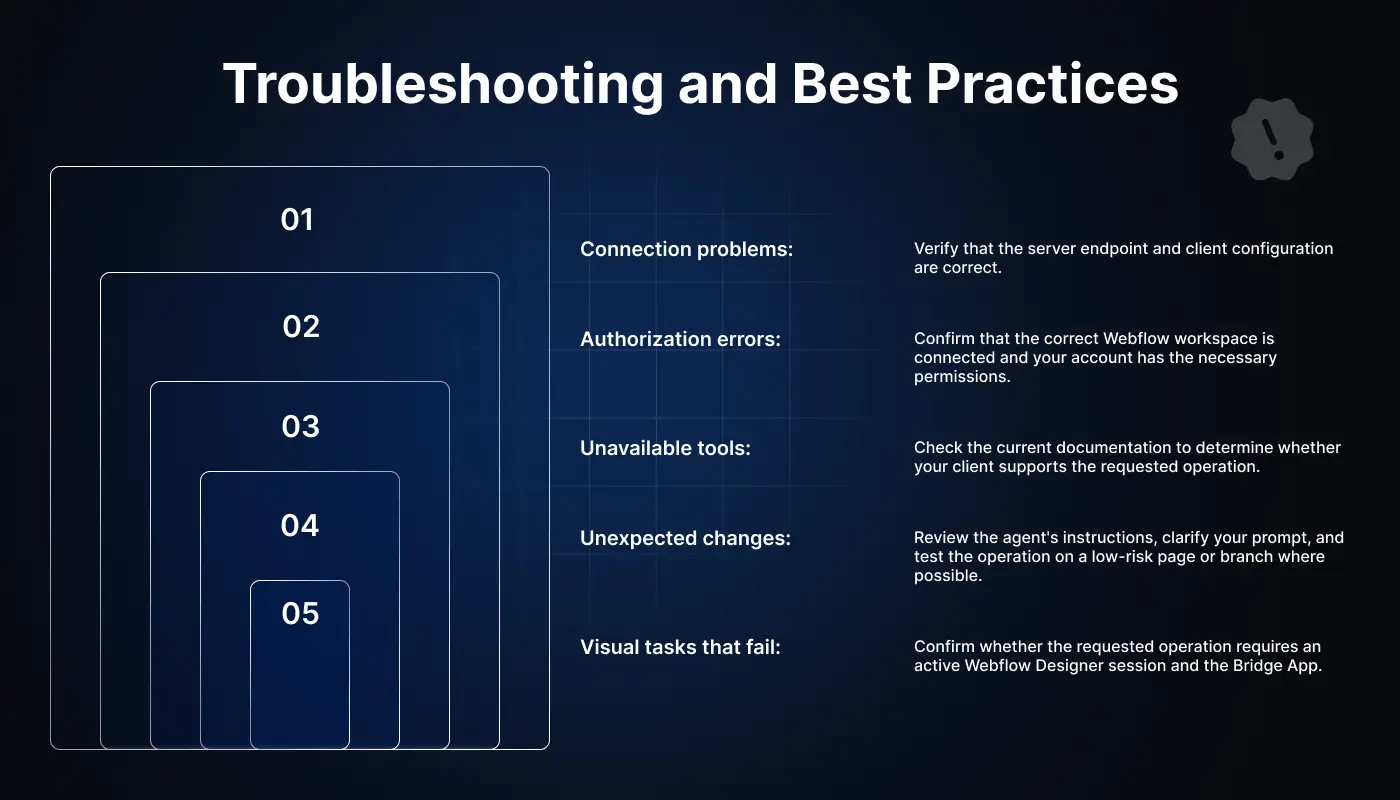
If Webflow MCP isn't working as expected, start with these checks:
Connection problems: Verify that the server endpoint and client configuration are correct.
Authorization errors: Confirm that the correct Webflow workspace is connected and your account has the necessary permissions.
Unavailable tools: Check the current documentation to determine whether your client supports the requested operation.
Unexpected changes: Review the agent's instructions, clarify your prompt, and test the operation on a low-risk page or branch where possible.
Visual tasks that fail: Confirm whether the requested operation requires an active Webflow Designer session and the Bridge App.
For better results, use specific prompts, define the desired outcome, and explain which existing styles or components the agent should follow. Break complex tasks into smaller steps and verify each result before moving forward.
Conclusion
Webflow MCP connects AI agents to supported Webflow capabilities, helping designers, developers, and marketing teams work with website content, components, page structures, and analytics through natural language.
Getting started involves choosing a compatible client, connecting to the official MCP server, authorizing your Webflow account, and testing a simple task.
Begin with low-risk workflows and expand gradually as you understand the available capabilities and limitations. With clear instructions, appropriate permissions, and human review, Webflow MCP can become a useful addition to your website development workflow.
If you need help implementing a Webflow website, improving its design system, or optimizing its technical SEO, explore VictorFlow's Webflow development services.
Need Help With Your Webflow Project?
Planning a new Webflow website or improving an existing one? VictorFlow helps businesses with Webflow design, development, CMS integration, performance optimization, and SEO.
Book a consultation with VictorFlow to discuss your website goals and project requirements.
Frequently Asked Questions
1. What is Webflow MCP?
Webflow MCP is an integration that connects compatible AI tools to Webflow projects through the Model Context Protocol, allowing agents to perform supported website tasks through natural language.
2. Is Webflow MCP free to use?
Webflow announced MCP 2.0 as available at no additional cost. However, access to particular Webflow features may still depend on your plan, permissions, and the AI client you use.
3. Which AI tools support Webflow MCP?
Webflow provides setup options for clients, including Claude Desktop, Claude Code, Cursor, Postman, and Windsurf. The official documentation should be checked for the latest compatibility details and setup methods.
4. Does Webflow MCP require coding knowledge?
Not necessarily. Many workflows use natural-language prompts, although technical knowledge can help with configuration, debugging, and more advanced development tasks.
5. Can Webflow MCP improve SEO?
It can assist with supported SEO-related tasks, such as reviewing page settings and structured data. However, MCP itself does not guarantee better rankings or organic traffic.
6. Is Webflow MCP safe to use?
Webflow MCP respects the permissions granted to the connected account and supports governance features. Users should still review authorization requests, test changes, protect sensitive information, and verify results before publishing.
7. What is the difference between Webflow MCP and the Webflow API?
The Webflow API lets developers integrate with Webflow programmatically. MCP provides a standardized way for compatible AI agents to use supported Webflow capabilities through a common interface, often with natural-language instructions.
8. Does Webflow MCP replace the Webflow Designer?
No. MCP can handle many supported operations without an active Designer session, but visual editing, canvas-based review, and certain other tasks may still require the Designer.



Choose Our Service, Grow Fast!
Follow Us


Table of Contents
Related Posts


October 12, 2026
Discover top-performing Design Framer templates in 2026, crafted to highlight creativity, project work, and engaging visual storytelling online efficiently.
Discover top-performing Design Framer templates in 2026, crafted to highlight creativity, project work, and engaging visual storytelling online efficiently.

October 8, 2026
Looking for the best Webflow agency? Explore top 10 Webflow design and development agencies in 2026, compare their expertise, services, and choose the perfect partner.
Looking for the best Webflow agency? Explore 10 top Webflow design and development agencies in 2026, compare their expertise, services, and choose the perfect partner.

October 8, 2026
Learn how to make an effective business website in 2026 with our comprehensive guide. Get tips on design, tools, and launching your site successfully.
Learn how to make an effective business website in 2026 with our comprehensive guide. Get tips on design, tools, and launching your site successfully.
Ready to Scale Your Project to the Next Level?
Let's take your project to new heights, reach out and see how we can help you.